IO port in PIC Microcontroller (PIC18F4550)
Complete Video Course on PIC18F4550 Microcontroller
- Complete Video Course on PIC18F4550 Microcontroller
- Configuring IO Port of PIC18F4550 – The Foundation of Embedded Control
- Understanding IO port in PIC18F4550
- Basic Concepts
- Example 1: LED Blink Using GPIO
- 🔧 Hardware Setup
- Example 2: Switch-Controlled LED
- 🔧 Hardware Setup
- Important Tips
- Common GPIO Applications
- Next Step: Go Beyond GPIO
- Complete Video Course on PIC18F4550 Microcontroller
- 💬Frequently Asked Questions (FAQ)
Configuring IO Port of PIC18F4550 – The Foundation of Embedded Control
Before diving into advanced modules like ADC, UART, or PWM, every embedded engineer must first understand IO port (General Purpose Input/Output port) — the building blocks of microcontroller programming.
The PIC18F4550 microcontroller comes with powerful, flexible I/O ports that let you read input signals (like switches or sensors) and control output devices (like LEDs, relays, or buzzers).
In this blog, we’ll explore how to configure and use GPIO ports in PIC18F4550 using MPLAB X IDE and the XC8 compiler, through simple and practical examples.
🎯 Goal: After reading this post, you’ll be able to set up I/O pins, blink LEDs, and read switch states — the essential first step to mastering embedded systems.
Understanding IO port in PIC18F4550
PIC18F4550 has five ports: PORTA, PORTB, PORTC, PORTD, and PORTE.
Each port has 8 pins (some with fewer active pins depending on configuration).
Every pin can act as input or output, configured through TRISx registers.
| Register | Function |
|---|---|
| TRISx | Data Direction Register (1 = Input, 0 = Output) |
| PORTx | Reads the current logic level on the port |
| LATx | Latch register used for writing output data |
Basic Concepts
Output: Set TRIS bit = 0 → write data to LATx register.
Input: Set TRIS bit = 1 → read data from PORTx register.
Example:
TRISBbits.TRISB0 = 0; // Configure RB0 as output
LATBbits.LATB0 = 1; // Set RB0 HIGH (LED ON)Example 1: LED Blink Using GPIO
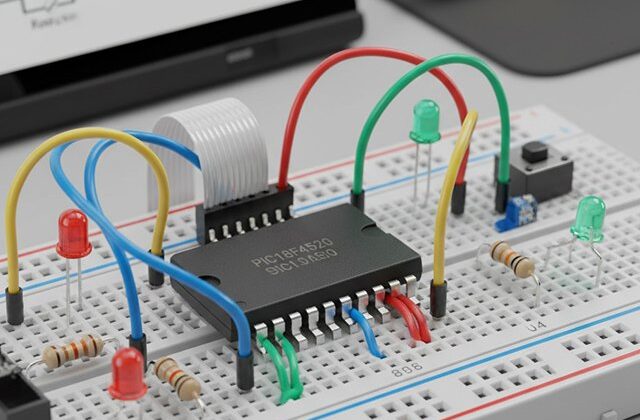
🔧 Hardware Setup
- Connect an LED (with 330Ω resistor) to RB0.
- Connect VSS (GND) to common ground.
#include <xc.h>
#define _XTAL_FREQ 8000000

void main(void) {
    TRISBbits.TRISB0 = 0; // RB0 as output

    while(1) {
        LATBbits.LATB0 = 1; // LED ON
        __delay_ms(500);
        LATBbits.LATB0 = 0; // LED OFF
        __delay_ms(500);
    }
}✅ Result: The LED connected to RB0 will blink every 500 ms.
Example 2: Switch-Controlled LED
🔧 Hardware Setup
LED → connected to RB0 (output).
Switch → connected to RB1 (input) with pull-down resistor.
#include <xc.h>
#define _XTAL_FREQ 8000000

void main(void) {
    TRISBbits.TRISB1 = 1; // RB1 as input (switch)
    TRISBbits.TRISB0 = 0; // RB0 as output (LED)

    while(1) {
        if(PORTBbits.RB1 == 1)
            LATBbits.LATB0 = 1; // LED ON when switch pressed
        else
            LATBbits.LATB0 = 0; // LED OFF
    }
}✅ Result: When you press the switch, the LED lights up!
Important Tips
- Always configure TRIS registers before using any pin.
- Use LATx for writing output and PORTx for reading inputs.
- Use digital input mode (disable ADC on analog pins if needed).
Example:
ADCON1 = 0x0F; // Configure all pins as digitalCommon GPIO Applications
- LED indicators and displays
- Push-button or sensor inputs
- Relay and transistor control
- Interfacing digital modules (IR sensor, keypad, etc.)
Next Step: Go Beyond GPIO
Once you master GPIOs, you can easily move on to ADC, Timers, UART, PWM, and Interrupts – all of which depend on correct pin configuration.
👉 Learn how to design real embedded projects step-by-step in our
Complete Practical Video Course on PIC18F4550 Microcontroller
➡️ Start Learning Now at “Master PIC18F4550 Programming“
Complete Video Course on PIC18F4550 Microcontroller
Software development tools & documents:
Tag: IO port, GPIO port, Input Output port
💬Frequently Asked Questions (FAQ)
LATx is used for writing output data, while PORTx is used to read the logic level on the pins.
Some pins are analog by default; setting ADCON1 = 0x0F makes them digital for GPIO use.
No – each pin can only be in one direction at a time. You can change its direction dynamically if needed.
Up to 35 I/O pins, depending on configuration and function assignments.
You can start with:
PIC18F4550 Development Board (available at Bitziga Store)
10kΩ Potentiometer or LM35 Sensor
MPLAB X IDE + XC8 Compiler
Proteus Simulation (optional)
You can join our premium hands-on course:
🎓 “Mastering PIC18F4550 Microcontroller” – A complete practical training covering ADC, Timers, Interrupts, UART, PWM, and real-world projects.
👉Mastering PIC18F4550 Microcontroller
Yes! This is part of our “Design to Learn” campaign.
Upcoming posts will include:
Timer Configuration and Delay Generation
UART Communication and Serial Data Display
PWM Generation and Motor Control Projects
Stay tuned and subscribe for updates 🚀